Simple Solutions for Noisy Laptop Fan Problems
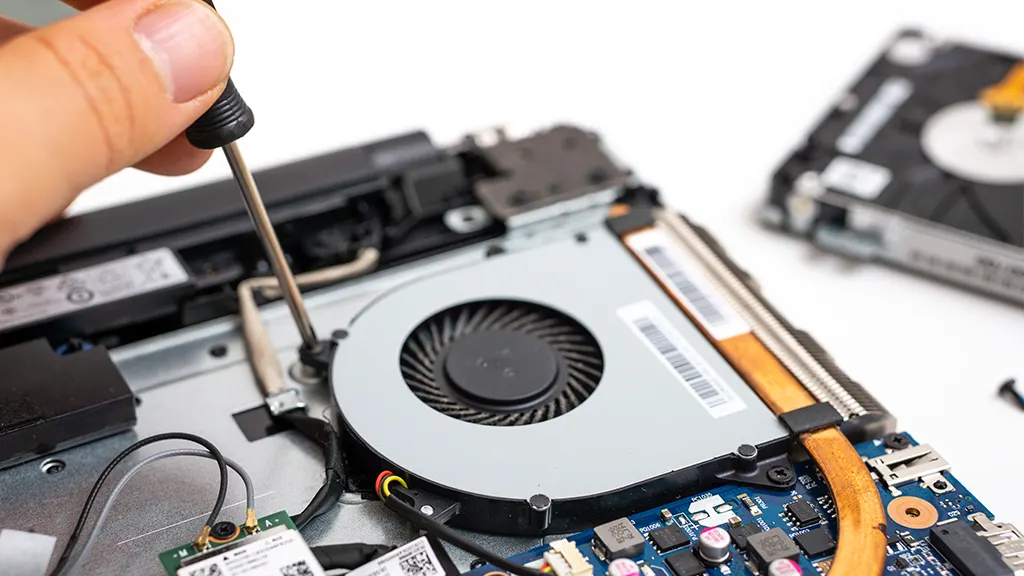
A laptop fan becomes louder when the computer produces more heat. Short periods of increased noise during updates, gaming, video editing, or demanding work are normal.
Constant roaring, grinding, clicking, or rattling should be investigated. The cause may be high processor activity, blocked airflow, dust, poor fan bearings, or overheating components.
Move the Laptop to a Hard Surface
Soft surfaces block air vents and force the fan to work harder.
Place the laptop on a desk, table, stand, or rigid tray.
Keep space around side and rear exhaust vents.
Basic laptop cooling guidance can help users understand how airflow affects fan speed.
Close Demanding Programs
Open Task Manager or Activity Monitor and check processor usage.
Close games, video editors, virtual machines, and unnecessary browser tabs.
Wait several minutes and listen for the fan to slow down.
If one program always causes excessive activity, update or reinstall it.
Restart the Laptop
A stuck background process can keep the processor busy.
Save work and restart normally.
After startup, open applications gradually.
If the fan becomes loud immediately, review startup programs and updates.
Check for Background Updates
Operating system updates, security scans, cloud backups, and file indexing can temporarily increase fan activity.
Allow important updates to finish while the laptop is connected to power.
Pause large nonessential downloads and syncing tasks.
Organized cloud file management reduces repeated background activity.
Reduce Browser Tabs
Video, advertisements, animations, and complex web applications can create high processor use.
Close unused tabs and remove unnecessary extensions.
Restart the browser.
Use one browser at a time.
Clean External Vents
Turn off the laptop and disconnect power.
Use short bursts of compressed air around exterior vents.
Keep the can upright and avoid pushing objects inside.
Heavy internal dust may require professional cleaning.
Scan for Malware
Malware can use processor resources continuously.
Update security software and run a full scan.
Remove detected threats and restart.
Avoid suspicious downloads and pirated programs.
Trusted computer security practices can prevent hidden activity that causes fan noise and overheating.
Change the Power Mode
Maximum-performance mode can keep the processor running at higher speeds.
Switch to balanced or battery-saving mode for ordinary tasks.
The fan may become quieter because the laptop produces less heat.
Lower Game and Graphics Settings
High frame rates and detailed graphics increase heat.
Reduce resolution, shadows, texture quality, and frame-rate limits.
Close recording tools and overlays.
Use the charger and proper ventilation during gaming.
Manage AI Workloads
AI image generation, local models, transcription, and coding tools can create sustained processor or graphics activity.
Close them after use and avoid running several tasks together.
Many AI processing tools can keep a fan active even when the main window is minimized.
Check Room Temperature
A hot room makes cooling more difficult.
Move the laptop away from sunlight, heaters, and enclosed spaces.
Improve room airflow.
Do not place ice or cold packs against the device.
Use a Laptop Stand
A stand raises the bottom and improves airflow.
Choose one that does not block intake vents.
A cooling pad may help with demanding laptops, but it cannot repair a damaged fan.
Listen to the Sound
A smooth rushing sound usually indicates normal airflow.
Grinding, clicking, scraping, or rattling may indicate damaged fan bearings or contact with debris.
Shut down the laptop and arrange inspection when mechanical noises appear.
Update Drivers and Firmware
Manufacturer updates may improve fan control and power management.
Use official support pages and select the exact laptop model.
Restart after installation.
Avoid unofficial firmware files because an incorrect update can prevent the computer from starting.
Check Battery Health
A failing or swollen battery may create additional heat.
Inspect the case for separation, a raised touchpad, or an uneven keyboard.
Stop using and charging the laptop if swelling is suspected.
Professional replacement is required.
Consider Thermal Paste Service
Old thermal paste may transfer heat poorly, forcing the fan to run faster.
Replacing it requires opening the laptop and removing the cooling system.
This work is best handled by a qualified technician.
Avoid Blocking the Exhaust
Keep books, walls, cables, and desk items away from the exhaust vent.
Do not use the laptop inside a closed drawer or tight shelf.
A few centimeters of open space can improve airflow.
Review Startup Applications
Messaging apps, launchers, cloud tools, and update managers may begin working immediately after login.
Disable unnecessary startup programs.
Keep essential security and hardware services enabled.
Check for Hardware Failure
A fan that never turns on during high heat may have failed.
Repeated shutdowns, burning smells, and extreme temperatures require immediate attention.
Do not continue heavy use.
Final Thoughts
A loud laptop fan is often a response to high heat or heavy processing. Use a hard surface, close demanding programs, clean vents, reduce startup activity, and choose balanced power settings.
Mechanical noises, swelling, repeated shutdowns, or a fan that stops completely require professional repair.
Early action protects the battery, processor, storage drive, and motherboard from heat-related damage.