Simple Fixes for Common Smartphone Charging Problems
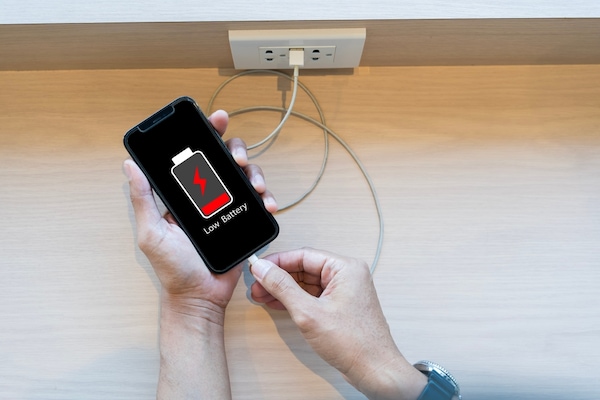
A smartphone that refuses to charge can quickly become a serious inconvenience. The problem may appear as slow charging, repeated disconnections, a battery percentage that does not increase, or a device that shows no charging symbol at all. In many cases, the phone itself is not permanently damaged. The cause may be a faulty cable, dirty charging port, weak power source, software error, excessive heat, or aging battery.
Begin with the simplest checks before paying for a repair. Test one component at a time so you can identify the actual source of the problem.
Check the Power Outlet
The phone may be working normally while the electrical outlet or extension lead is faulty.
Plug another device into the same outlet to confirm that it provides power. Try a different wall outlet and avoid relying on a loose extension cable.
Some laptop USB ports provide less power than a wall charger. The phone may charge slowly or fail to charge while the computer is sleeping.
For the fastest and most stable result, connect the charger directly to a working wall outlet.
Inspect the Charging Cable
Charging cables experience constant bending, pulling, twisting, and pressure. Damage may occur near the connector even when the outer covering appears normal.
Look for exposed wires, loose ends, bent connectors, discoloration, or areas that feel unusually soft.
Test the phone with another compatible cable from a reputable brand. If the second cable works consistently, replace the original one.
Helpful smartphone hardware guides can explain how charging cables, adapters, ports, and battery components work together.
Test the Charging Adapter
The adapter that connects the cable to the wall can also fail.
Try the cable with another compatible adapter. Check whether the original adapter becomes unusually hot, makes noise, or smells burned.
Stop using any charger showing physical damage or unstable performance.
Make sure the adapter provides a charging standard supported by your phone. An underpowered charger may work but charge much more slowly.
Clean the Charging Port Carefully
Pocket lint and dust can collect inside the charging port. This prevents the connector from fitting completely.
Turn the phone off and inspect the port under bright light. Follow the manufacturer’s cleaning recommendations.
Do not pour liquid into the port or push metal pins, knives, or needles inside. The contacts are delicate and can be damaged easily.
A dry, soft brush or professional cleaning may be safer when the debris is difficult to remove.
Reconnect the Cable Firmly
A connector that is not inserted fully may cause charging to start and stop repeatedly.
Remove the cable, inspect both ends, and reconnect it carefully. Do not force a connector that does not fit smoothly.
If charging works only when the cable is held at a particular angle, the cable or port may be damaged.
Continuing to use a loose connection can worsen the problem.
Restart the Phone
A temporary software error may prevent the operating system from recognizing the charger.
Restart the phone and reconnect the charger after it turns back on.
If the battery is completely empty, leave the phone connected for at least 20 to 30 minutes before attempting another restart.
A fully drained battery may not display a charging symbol immediately.
Allow the Device to cool
Phones may pause or slow charging when the battery becomes too hot.
Move the device away from direct sunlight, stop demanding applications, and remove a thick case temporarily.
Let the phone cool naturally at room temperature. Do not place it in a refrigerator or freezer.
Charging under a pillow, blanket, or cushion traps heat and should always be avoided.
Remove Moisture From the Port
Many modern phones display a moisture warning when liquid is detected in the charging port.
Disconnect the cable and place the phone in a dry, ventilated area. Keep the port facing downward when possible.
Do not use a hair dryer, direct heat, or compressed air. These methods may push moisture deeper or damage internal components.
Wait until the warning disappears before charging with a cable.
Try Wireless Charging
If the phone supports wireless charging, use it to test whether the battery can still receive power.
Wireless charging working normally while cable charging fails may indicate a damaged port, cable, or adapter.
Remove thick cases, metal objects, cards, and magnetic accessories before placing the phone on the charging pad.
Align the phone correctly because poor placement can create heat and slow charging.
Remove Unnecessary Applications
A badly behaving application may use power as quickly as the charger supplies it.
Open battery settings and check which apps consume the most energy. Close demanding games, navigation tools, video editors, and streaming applications while charging.
Practical mobile troubleshooting methods often begin with identifying whether the phone is truly failing to charge or simply consuming power too quickly.
Turn On Airplane Mode
Airplane mode reduces cellular, Wi-Fi, and Bluetooth activity.
Enable it temporarily and observe whether the battery percentage begins increasing more quickly.
This can be especially helpful in an area with weak cellular reception, where the phone uses extra power searching for a network.
Remember that calls and messages will not arrive while airplane mode is active.
Charge While the Phone Is Off
Turn the phone off completely and connect the charger.
If the battery charges normally while the device is off, background software or heavy usage may be reducing charging speed.
Update the operating system and review battery usage after turning it back on.
A phone that still does not charge while powered off may have a hardware problem.
Update the Operating System
Software updates may correct battery-management and charging errors.
Install stable updates when the phone has enough remaining power or can remain connected reliably.
Back up important information before a major system update.
Restart the device after installation and test the charging process again.
Check Battery Health
An aging battery may charge slowly, lose power quickly, or shut down unexpectedly.
Open the battery-health section if the phone provides one. A service warning or significantly reduced maximum capacity may indicate that replacement is needed.
Do not ignore physical swelling, screen separation, or a raised back cover.
Stop charging a swollen battery and seek professional repair immediately.
Use Safe Charging Accessories
Cheap or counterfeit chargers may provide unstable voltage, overheat, or fail to support the phone’s charging system.
Use accessories from the device manufacturer or a reputable certified company.
Following safe charging practices can reduce the risk of battery damage, overheating, and unreliable power delivery.
Do not assume the highest advertised wattage is always best. The phone will normally draw only the amount it supports, but poor-quality accessories may not control power safely.
Check for Security Problems
Malware or aggressive applications can keep the processor, network, camera, or location services active.
Unexpected heat, rapid battery loss, pop-ups, and unfamiliar apps may indicate suspicious software.
Review recently installed applications and remove anything downloaded from unofficial sources.
Reliable smartphone security advice can help users identify risky apps that interfere with battery and charging performance.
Reset Settings Carefully
A settings reset may correct unusual power-management conflicts without deleting photographs and ordinary files.
Read every option carefully because a factory reset is much more destructive.
Back up important information before making major changes.
Test charging immediately after the reset before reinstalling or reconfiguring many services.
Seek Professional Repair
Professional help may be necessary when the charging port is loose, burned, damaged by liquid, or physically broken.
A technician may also need to test the battery, charging circuit, and internal connectors.
Back up your data before repair whenever the phone remains usable.
Charging problems often come from accessories or debris rather than major internal failure. Test the outlet, cable, adapter, port, software, temperature, and battery condition in a logical order. Stop using damaged or overheating accessories, and seek professional help when the battery or port shows visible physical damage.